Add a Zoom meeting
Integration requirements
⚠️
The Zoom integration is available in Content Controller version 5.0 and later. The following criteria must be met:
- You must have a user with Administrator permissions in both Content Controller and Zoom.
- That user email must match in both Content Controller and Zoom.
Find the Zoom Application Connect Set Up
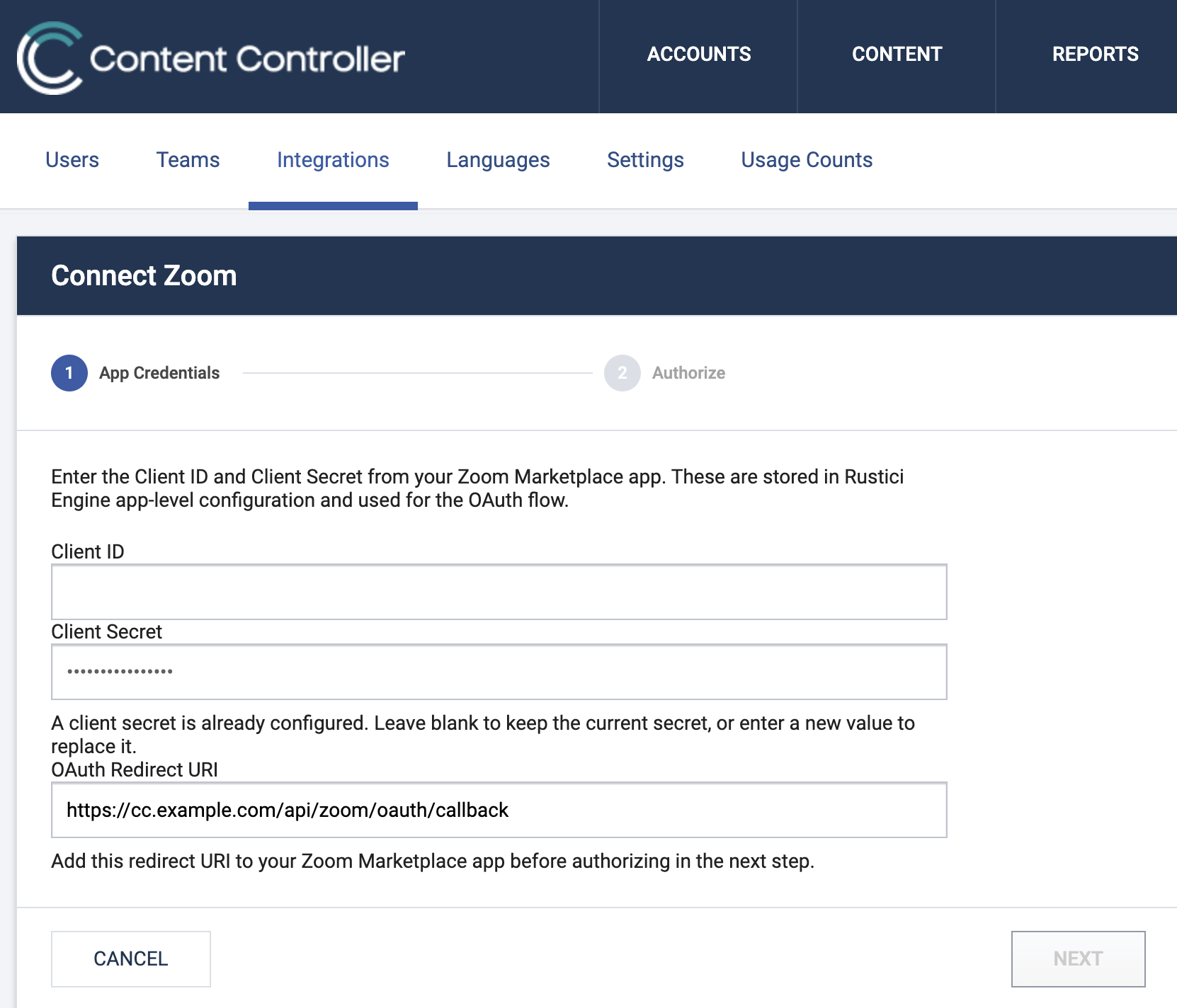
- In Content Controller, go to Settings > Administration > Integrations > Applications.
- For Zoom, select Connect.
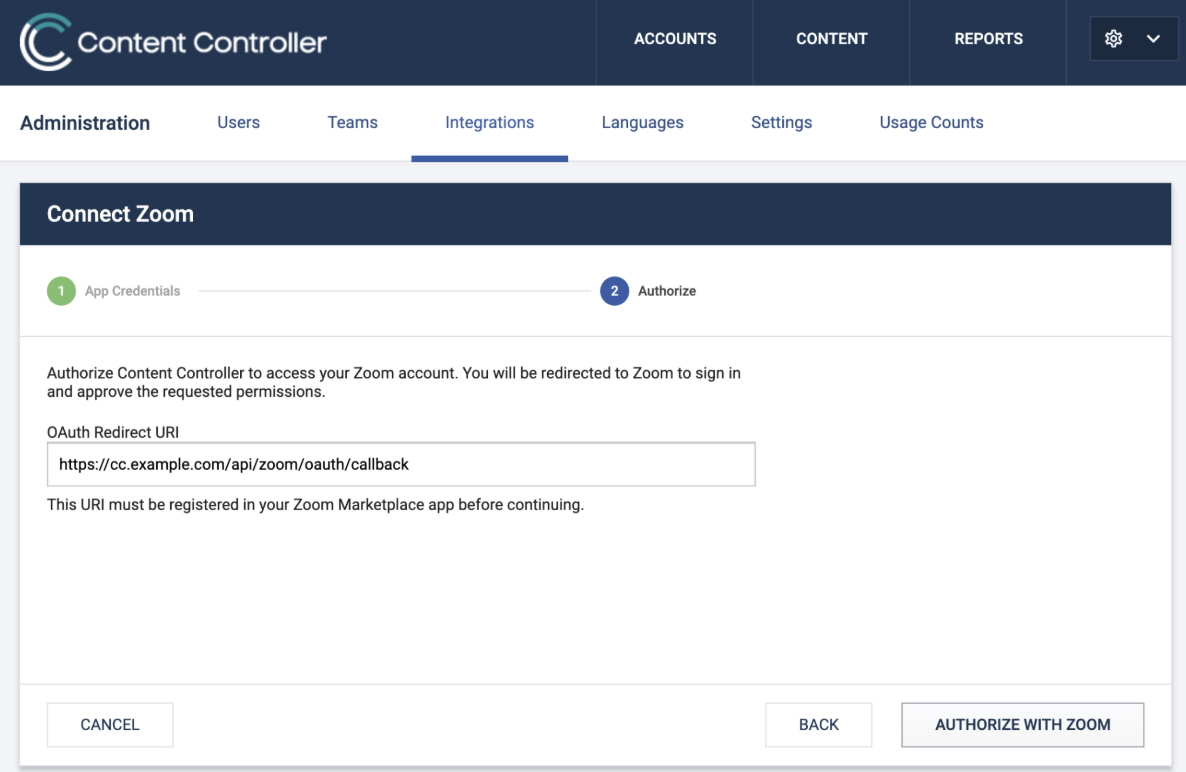
- Save the OAuth Redirect URI for a later step.
Build a Zoom app
You need to build an app in Zoom to authenticate with Content Controller. Do this through the Zoom Marketplace.
- Go to https://marketplace.zoom.us/ and sign in.
- In the top right corner, turn on Try new experience if it is off.

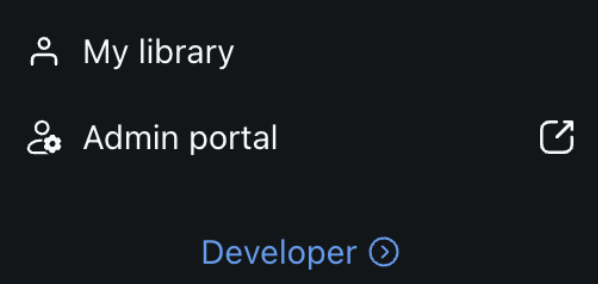
- Click Developer in the bottom left corner.
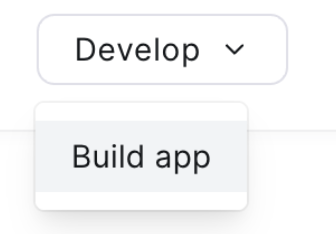
- In Platform Studio, click Develop in the top right corner and select Build App.
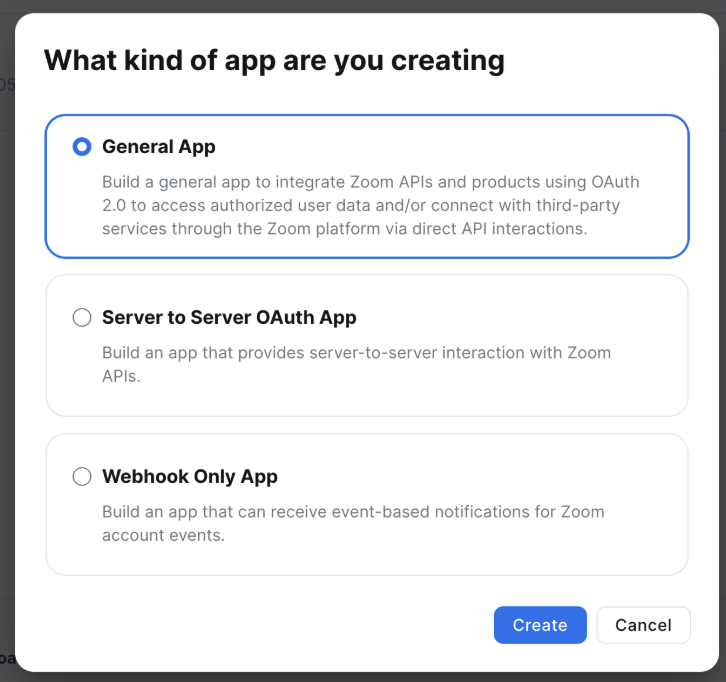
- Choose General App, then select Create.
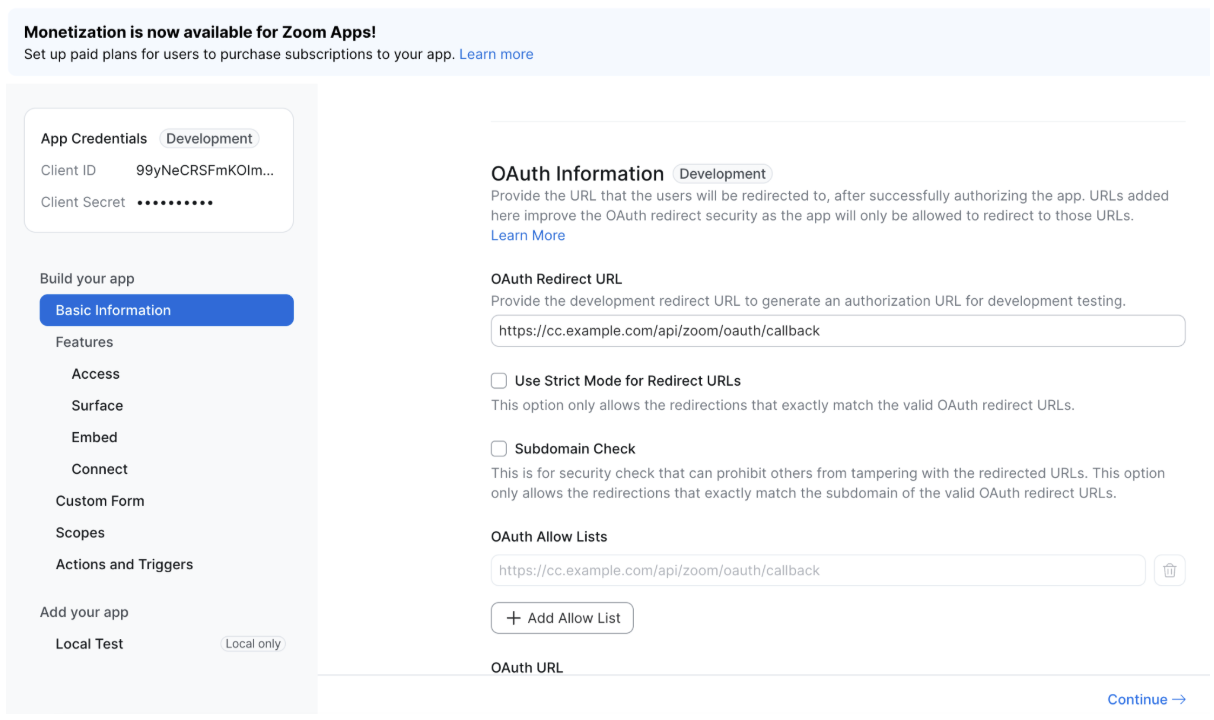
- On the left panel, go to Basic Information. Scroll down on the page content to Select how the app is managed. Choose Admin-Managed and Save.
- Scroll further down on the page content and enter the OAuth Redirect URI. This is the URI that you saved in step 3 of Find the Zoom Application Connect Set Up.
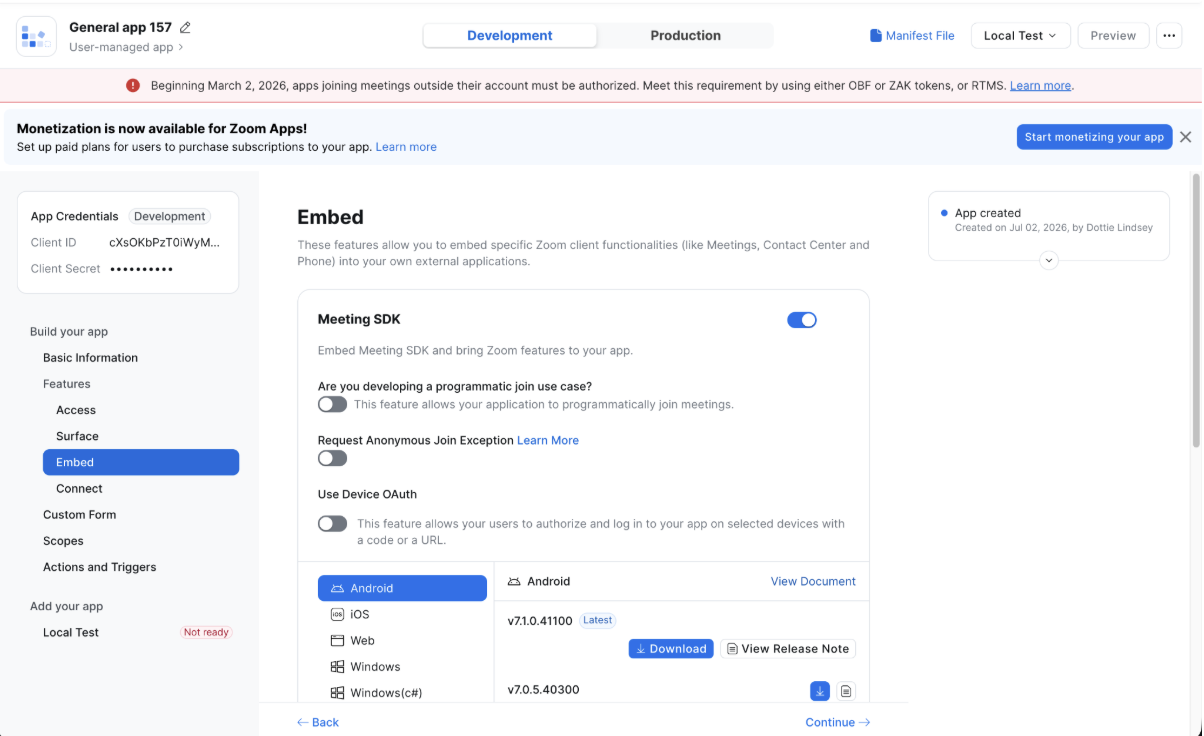
- On the left panel, go to Embed and turn Meeting SDK on.
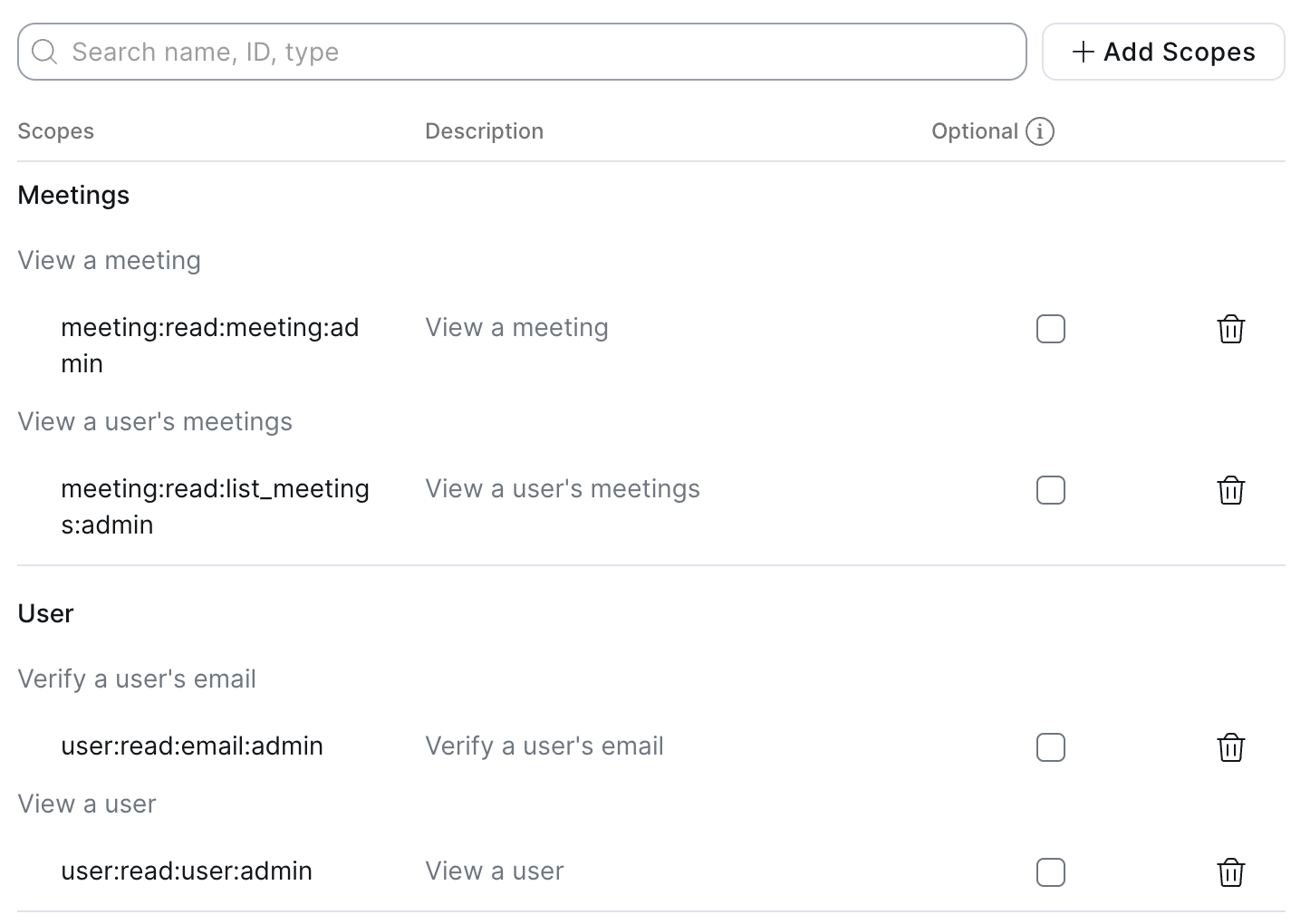
- On the left panel, go to Scopes and select Add Scopes.
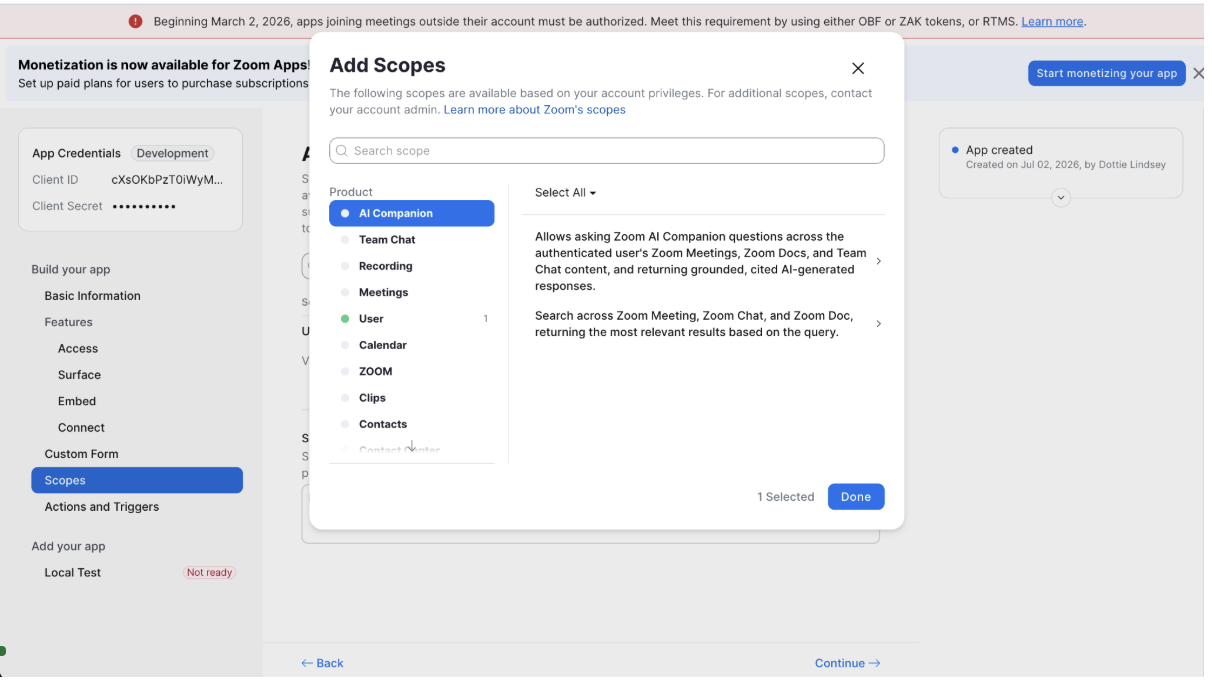
- In the Add Scopes modal, search for and add one scope at a time. Add the following scopes:
meeting:read:meeting:admin(View a meeting)meeting:read:list_meetings:admin(View a user’s meeting)user:read:email:admin(View a user’s email)user:read:user:admin(View a user)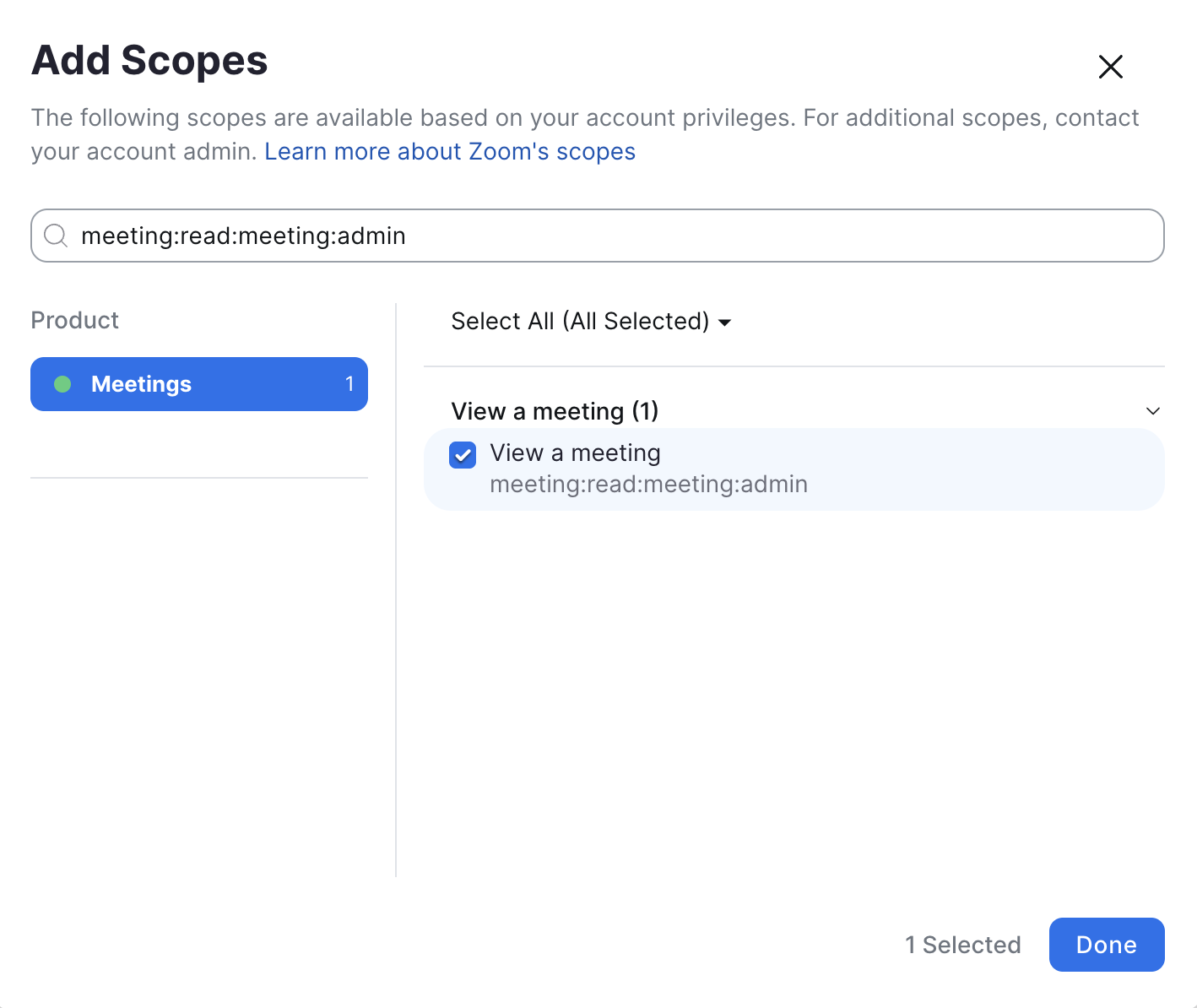
- After the four scopes are added, click Done.
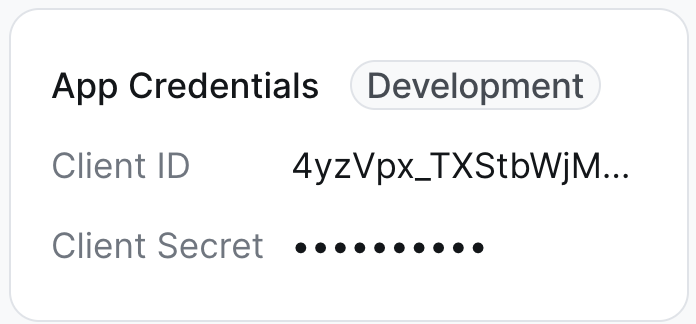
- At the top of the left panel, copy the App Credentials (Client ID and Client Secret). You will need these in Content Controller.
Connect Zoom in Content Controller
- In Content Controller, go to Settings > Administration > Integrations > Applications.
- For Zoom, select Connect.
- Enter the Client ID and Client Secret from Zoom.
- Select Next.
- Select Authorize with Zoom. You will be redirected to a Zoom App page requesting permission to connect. Your App may still have a generic name. You can rename it in the Zoom’s App Builder at any time. Select Allow.
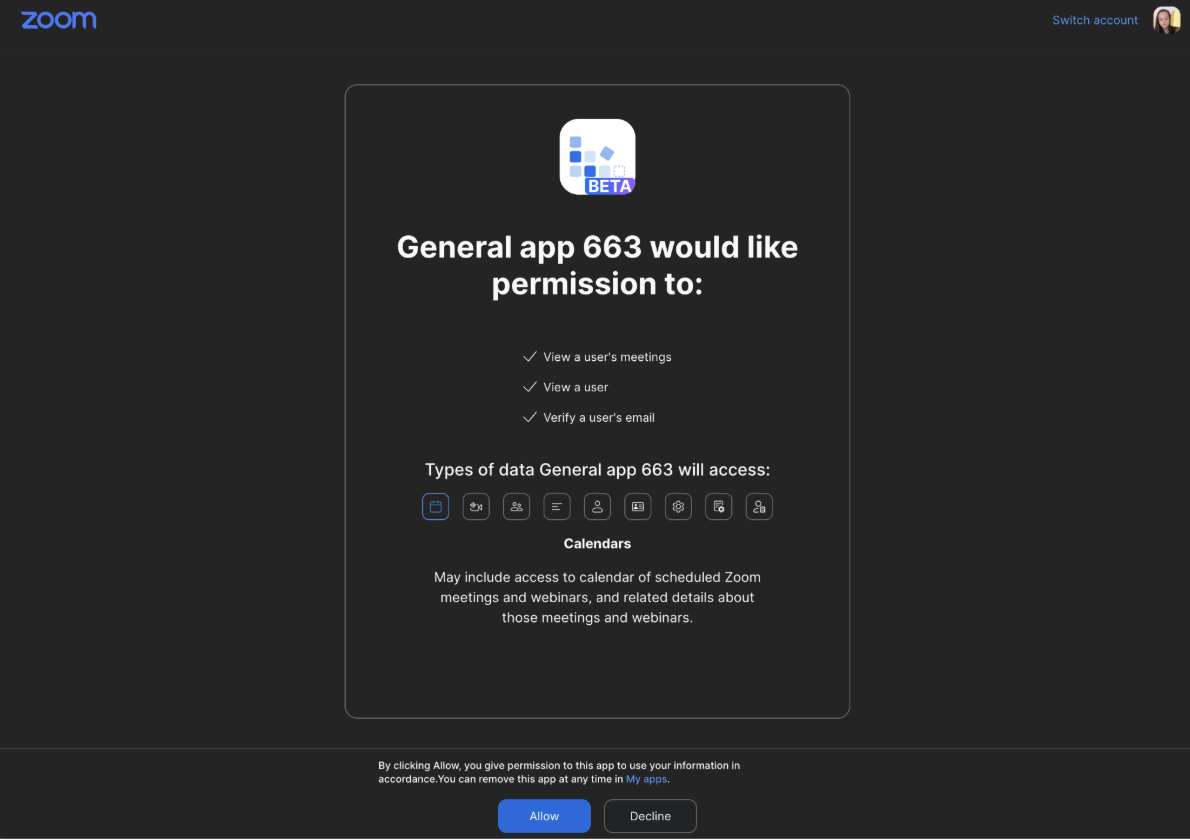
- You will be redirected back to Content Controller. A green success notification should appear when the connection is complete.
Add a Zoom Event as Content
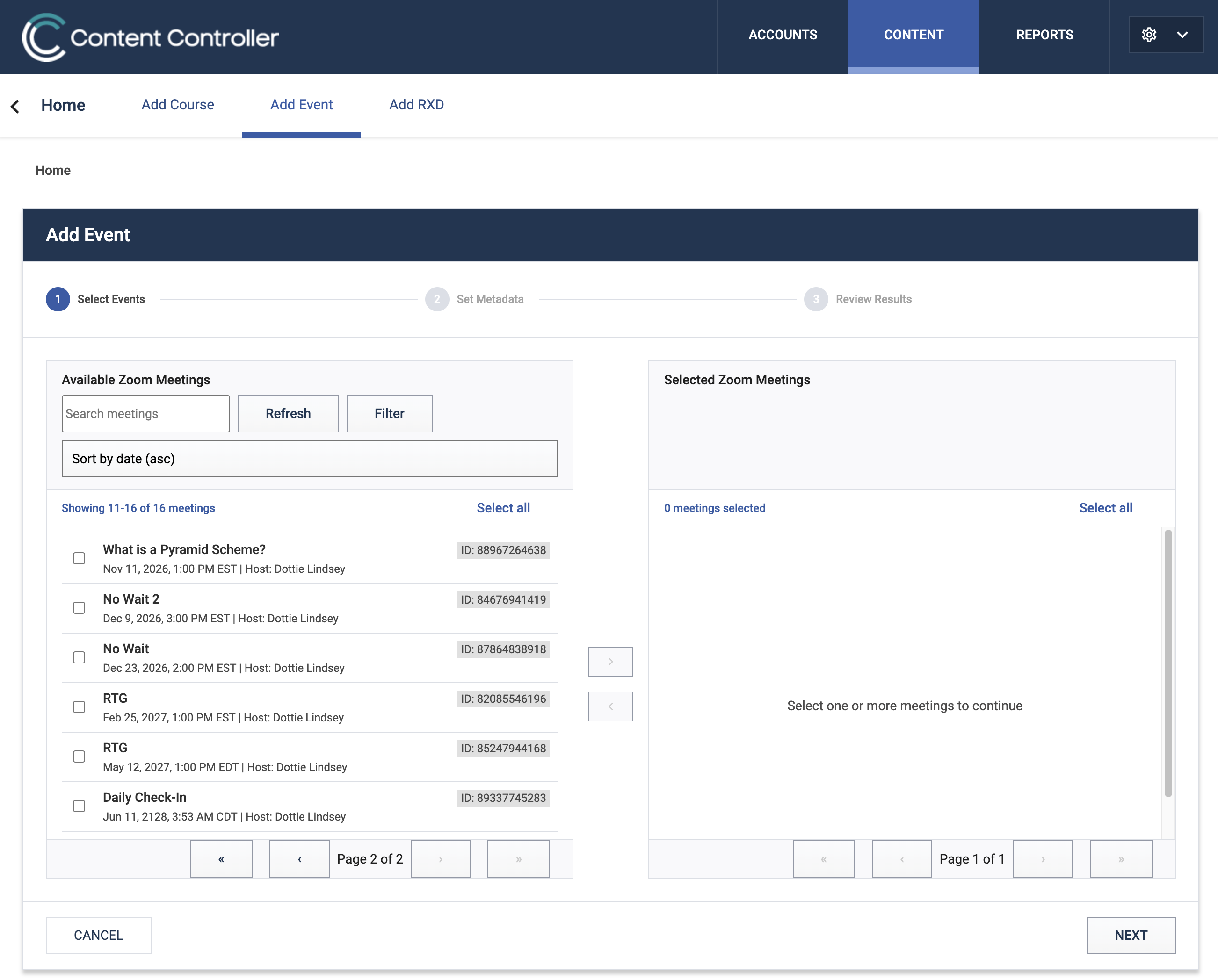
- Go to Content > Add > Courses > Add Event.
- Pick the Zoom Meetings to import and select Next.
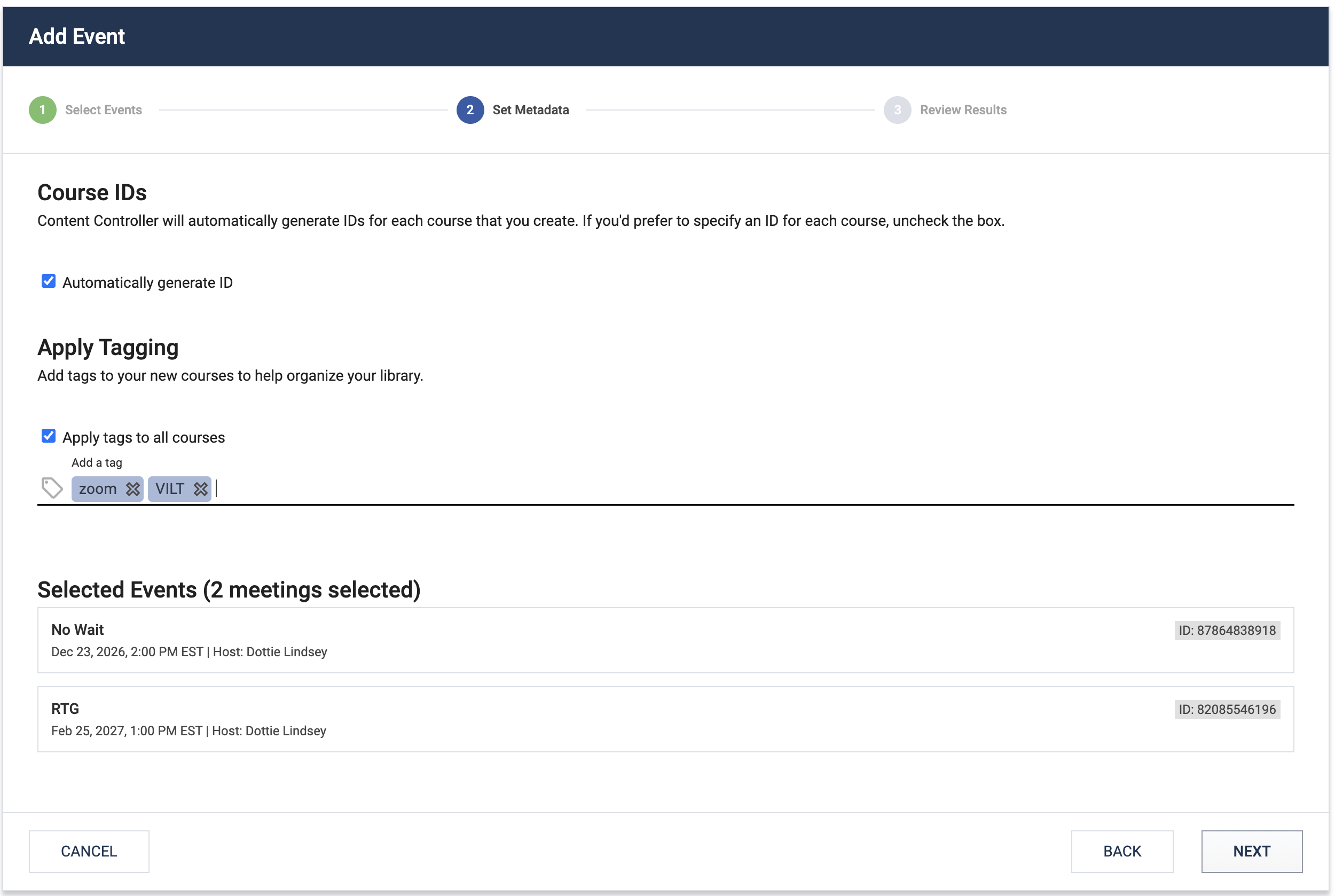
- Add any custom IDs and tags on the Metadata step.
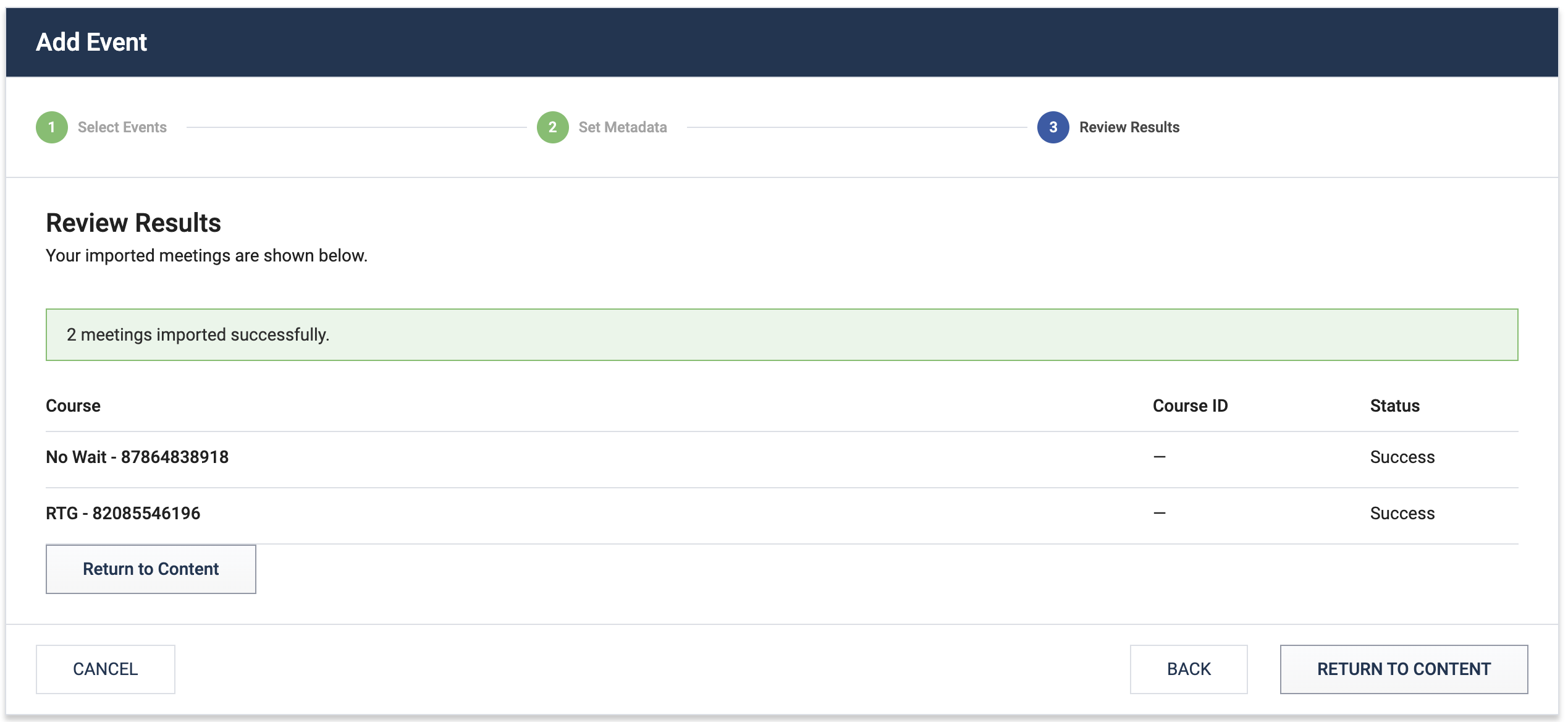
- Review Results and select Return to Content.
From here the Zoom meeting can be treated like any other course content. You can add it to accounts, edit details and create a dispatch.